19 Dec 2025
- 0 Comments
Ever spent hours planning your night under the stars, only to lose your list when you switch devices or share it with a friend? You’re not alone. Planetarium software like Stellarium, SkySafari, or Cartes du Ciel lets you build custom observing lists - but saving and sharing them isn’t always obvious. Here’s how to do it right, so you never lose your favorite targets again.
Why Saving Observing Lists Matters
Your observing list isn’t just a random collection of stars and galaxies. It’s your personal roadmap for the night. Maybe you’ve spent weeks tracking down deep-sky objects visible from your backyard in Portland, or you’ve compiled a list of planets to show your kid during a family camping trip. If you don’t save it properly, you risk losing everything - especially if your phone dies, your software updates, or you borrow a friend’s telescope.
Most planetarium programs let you create lists, but only a few make saving and exporting them easy. The best ones let you export in standard formats like .csv, .txt, or even .ssc (Stellarium’s native format). That means you can open your list on any computer, phone, or tablet - even if you’re not using the same software.
How to Save Your Observing List
Each planetarium program handles saving differently. Here’s how to do it in the three most popular ones.
Stellarium (Windows, macOS, Linux, Android, iOS)
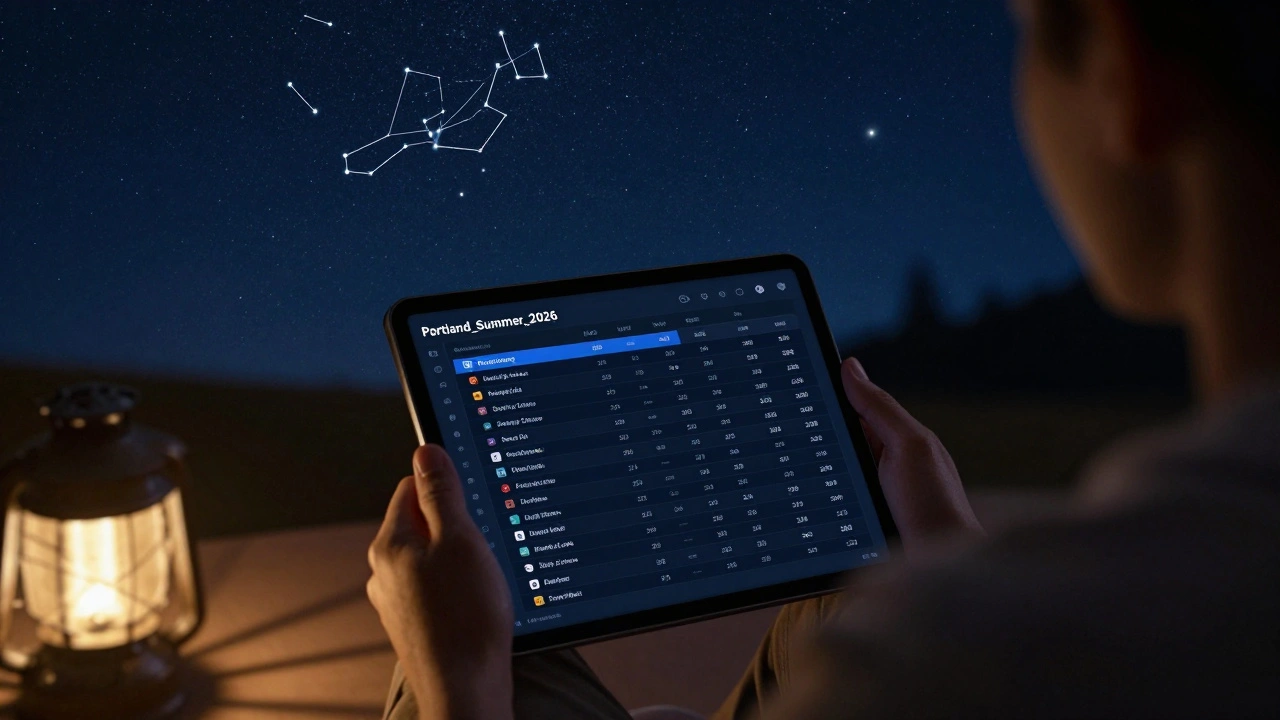
In Stellarium, click the Observing List button (it looks like a clipboard) in the bottom toolbar. Once you’ve added objects to your list, click the Save button at the bottom of the list window. You’ll be asked to name your file. Choose a clear name like Portland_Summer_2026.
By default, Stellarium saves lists as .ssc files in the user_data folder. On Windows, that’s usually C:\Users\[YourName]\AppData\Roaming\Stellarium\user_data\. On macOS, it’s inside ~/Library/Application Support/Stellarium/. Don’t worry about finding it manually - the save dialog gives you a location to pick.
Pro tip: Copy your .ssc file to a cloud folder like Google Drive or Dropbox. That way, it’s backed up and ready to sync across devices.
SkySafari (iOS, Android, macOS, Windows)
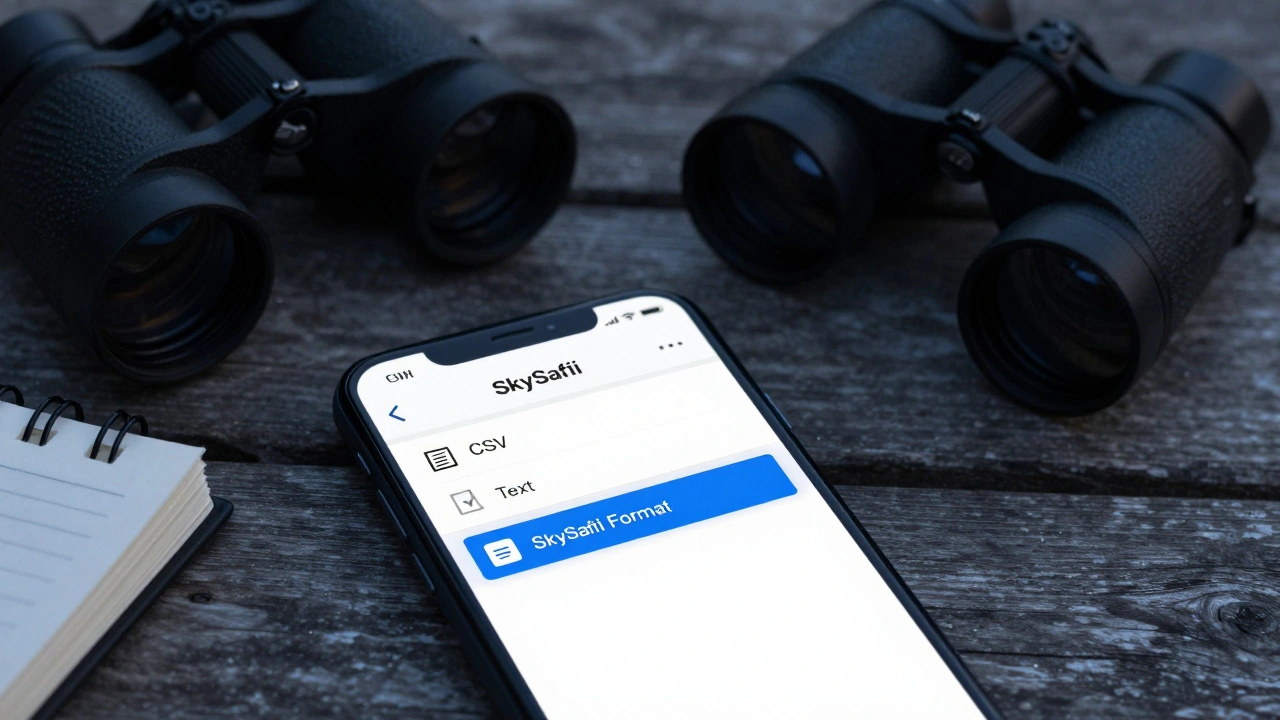
SkySafari makes saving even easier. After building your list, tap the Menu button (three dots) in the Observing List screen. Choose Export List. You’ll see options for CSV, Text, or SkySafari Format.
For maximum compatibility, pick CSV. That file can be opened in Excel, Google Sheets, or even Notepad. It includes object names, coordinates, magnitudes, and constellation names. You can email it, upload it to Google Drive, or transfer it via USB.
If you’re sharing with another SkySafari user, choose the SkySafari Format. They can import it directly into their app - no conversion needed.
Cartes du Ciel (Windows, macOS, Linux)
Cartes du Ciel uses a slightly different workflow. After creating your list in the Object List window, go to File > Save List. You can save it as a .lst file or export to .csv by selecting Export to CSV.
Cartes du Ciel lists include object type, RA/Dec, magnitude, and notes. The .csv export is especially useful if you want to sort by brightness, distance, or rise time later.
How to Share Your Observing List
Sharing your list is just as important as saving it. Maybe you want to send your list to a friend who’s joining you for a star party, or you’re teaching a beginner how to find the Orion Nebula. Here are the best ways to do it.
Send via Email or Messaging Apps
Once you’ve exported your list as a CSV or text file, attach it to an email, WhatsApp message, or Signal thread. Most people can open CSV files on their phones - even without special software. They’ll see a table with object names and coordinates. If they use the same planetarium app, they can import it directly.
Upload to Cloud Storage
Dropbox, Google Drive, or OneDrive work great. Upload your .ssc, .csv, or .lst file, then share the link. No need to email. Just send a link like https://bit.ly/Portland-List-2026. The recipient can download it and import it into their own app.
Use a Public Observing List Repository
Some astronomy forums - like Cloudy Nights or the Stellarium subreddit - let users upload and share lists. You can post your list as a downloadable file. Others can use it, improve it, or give you feedback. It’s a great way to contribute to the community.
What to Include in Your Observing List
Not all lists are created equal. A good list doesn’t just name objects - it helps you find them. Here’s what to add:
- Object name (e.g., M42, NGC 891)
- Right Ascension and Declination (RA/Dec)
- Magnitude (brightness)
- Constellation
- Time of best visibility (e.g., “Best after 10 PM”)
- Notes: “Requires dark sky,” “Good for binoculars,” “Easy for beginners”
Some apps let you add custom tags. In SkySafari, you can mark objects as “Favorite” or “Challenge.” That helps you filter later.
Common Mistakes to Avoid
Even experienced observers mess this up. Here are the top three mistakes - and how to avoid them.
- Not backing up - If you only save lists locally on one device and it crashes, you lose everything. Always copy files to cloud storage.
- Using proprietary formats only - .ssc and .sky files are convenient, but if you switch apps later, you might not be able to open them. Always export a CSV backup.
- Forgetting to check coordinates - Some lists include outdated or incorrect RA/Dec values. Double-check your objects in the app before saving. A 0.1-degree error can mean missing your target entirely.
What Happens When You Switch Apps?
You might start with Stellarium, then switch to SkySafari because it works better on your phone. Or maybe you’re using Cartes du Ciel on your laptop but want to take your list to the field. Here’s how to move between them.
CSV files are your best friend. Export your list as CSV from one app, then import it into the other. Most modern planetarium software supports CSV import. In SkySafari, go to Observing List > Import. In Stellarium, you can manually load .ssc files from your cloud folder.
If you’re switching from SkySafari to Stellarium, you’ll need to convert the CSV. Open it in Excel or Google Sheets, then copy the object names into Stellarium’s manual entry tool. It’s a bit manual, but it works.
Final Tips for Keeping Lists Organized
Here’s a simple system that works for hundreds of amateur astronomers:
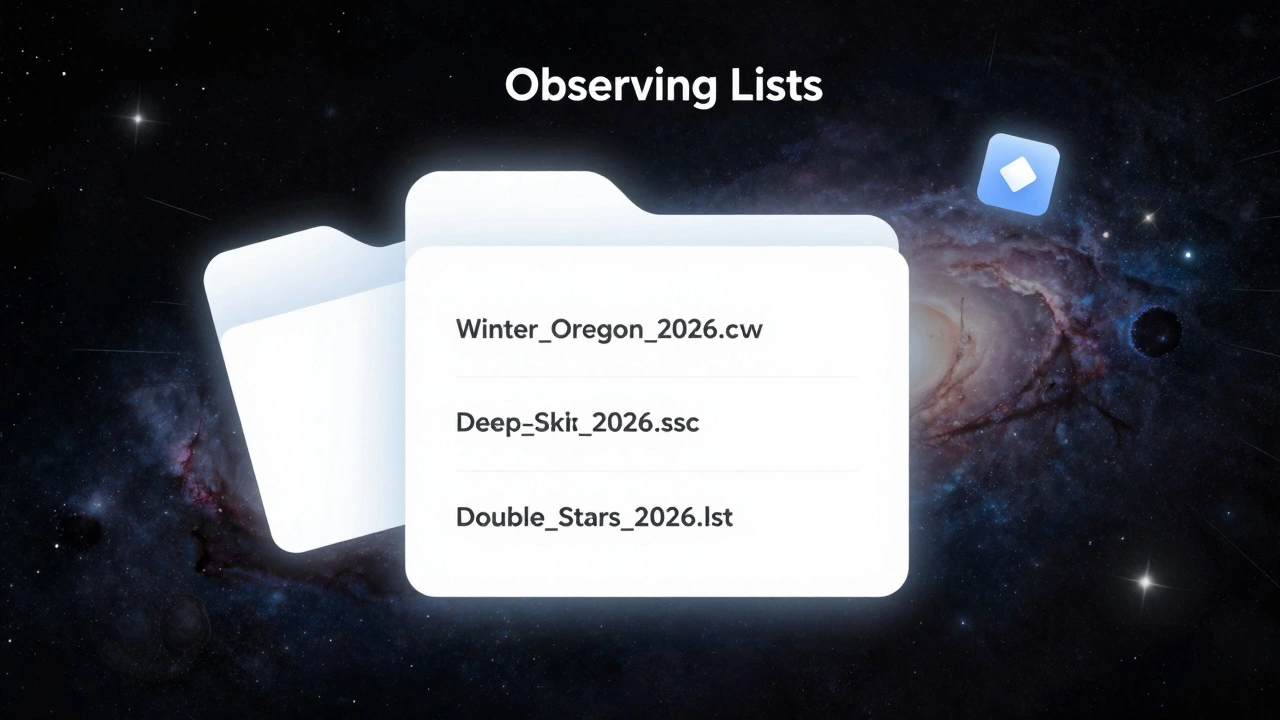
- Use consistent naming: Season_Location_Year (e.g., Winter_Oregon_2026)
- Keep a master folder in your cloud drive called “Observing Lists”
- Color-code lists by type: “Planets,” “Deep Sky,” “Double Stars”
- Update your lists every season - skies change, and new targets become visible
- Share one list per event - don’t overload a single file with too many targets
Once you get into the habit of saving and sharing your lists, you’ll wonder how you ever did without them. Your next star party? You’ll be the one with the perfect, pre-loaded list - and your friends will be asking how you did it.
Can I share my observing list with someone using a different planetarium app?
Yes, but you need to export it in a universal format like CSV. Most apps - including Stellarium, SkySafari, and Cartes du Ciel - support CSV import. If you export your list as CSV from one app, the other can usually read it. Avoid proprietary formats like .ssc or .sky if you plan to share across platforms.
What’s the best file format for saving observing lists?
For maximum compatibility, use CSV. It works on phones, computers, and tablets. It’s human-readable (you can open it in Notepad or Excel), and most planetarium apps can import it. If you’re only using one app (like Stellarium), you can use its native .ssc format, but always keep a CSV backup.
Why can’t I find my saved list after updating the app?
Some app updates reset user data. Always save your lists outside the app’s default folder - copy them to Google Drive, Dropbox, or your desktop. That way, even if the app deletes its internal files during an update, you still have a copy.
Do I need to pay for software to save or share observing lists?
No. Free apps like Stellarium and Cartes du Ciel let you save and export lists without cost. SkySafari has a free version that supports CSV export. You only need to pay if you want advanced features like automatic telescope control or real-time sky tracking - not for saving lists.
Can I print my observing list for use under the stars?
Absolutely. Export your list as a PDF or print the CSV file. Many observers use waterproof paper and clipboards under the stars. Just make sure your printout includes coordinates and constellation names - not just object names. That way, you can still find targets if your phone battery dies.